Student Tech Product Guide

6 Best Laptop for Art Students 2026: Real Touch & Accurate Color

The best laptop for art students - which deliver real pen support, color-accurate screens, and enough RAM for creative software.

6 Best Laptop for Art Students 2026: Real Touch & Accurate Color editorial illustration

For art students, a laptop is the primary studio tool, and the details that separate a capable machine from a frustrating one get buried in marketing copy. Listings advertise 'touchscreen' when the display only registers fingers, not an active pen, and entry-level models often ship with 8GB RAM and washed-out colors. This guide sorts out which laptops actually deliver stylus input, color accuracy, and the memory your creative software needs.

Choose whether you want to draw directly on the screen or work with a separate pen tablet, because that decision shapes every other spec. Convertibles with stylus support give instant feedback for sketching but often compromise on color fidelity and processing headroom. A non-touch machine with a wide-gamut display delivers truer color for finished work, yet requires an external tablet for on-screen drawing.

Most art students discover that 16GB of RAM is the practical floor for multi-layer files and that battery claims don't survive real creative workloads. Knowing those boundaries before you buy keeps you from overpaying for features you'll never use or settling for a machine that stalls mid-project.

#1

MacBook Air 13 M5

MacBook Air 13 M5

Portable color accuracy

Customer rating 4.8/5
Check Price

Worth Noting

  • 13.6-inch panel is the smallest in this set
  • At the premium end of this set, the price hits a student budget harder than the mid-range convertibles.
CPU
Apple M5 chip
RAM
16GB unified memory
Display
13.6-inch Liquid Retina
Storage
1TB SSD
Read the full review

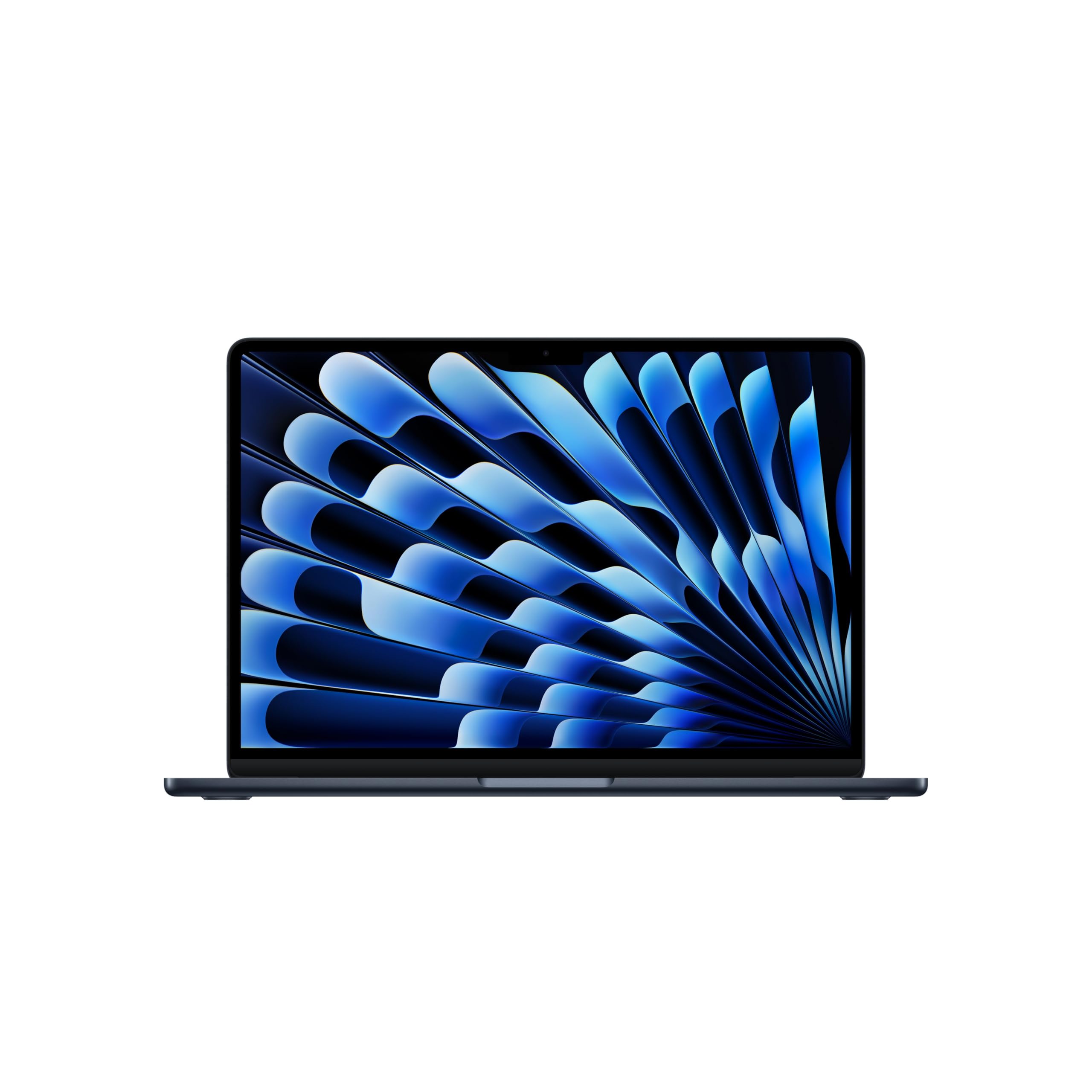
The 1-billion-color Liquid Retina display is the accuracy benchmark in this lineup, reproducing color gamuts the standard FHD panels of the budget convertibles cannot approach. Printed comps match the screen closely enough for client-grade proofing, which is exactly what output-fidelity work demands. The M5 chip backs that panel with enough headroom to move layer-heavy Photoshop files and 4K video timelines without perceptible lag, while 16GB unified memory holds a browser, Illustrator, and a dozen reference tabs open at once. High brightness and wide viewing angles keep colors stable when a critique moves to a cafe table; no mid-range option in this set delivers the same on-screen color certainty.

Battery endurance covers a full campus day, so a long studio session never stops at the nearest outlet — an edge the budget convertibles in this set cannot match. The two-plus-pound frame slides into a backpack alongside a tablet and sketchbook, and apps wake almost instantly, the kind of responsiveness that keeps creative momentum intact through an afternoon of revisions. A 12MP Center Stage camera and Wi-Fi 7 round out incidental needs, from recording progress videos of a piece to shifting large project files between devices. The chassis runs cool enough for lap work during critique sessions, a comfort detail that matters in back-to-back classes.

This is the right machine for the art student who prioritizes output fidelity and portability over stylus convenience — someone whose daily work lives in raster and vector software rather than inking directly onto glass. A buyer who needs to draw straight on the display will find that capability in the HP Envy x360 or Acer Spin 3, the touchscreen options in this set. The MacBook Air itself has no touchpanel; on-screen drawing depends on a separate tablet, a boundary some students accept and others will not. Comfort with macOS and the Apple ecosystem is the other prerequisite.

The 16GB RAM and 1TB SSD configure this for four years of coursework, the kind of longevity that eases the sting of its position at the premium end of this set. Students already inside Apple's ecosystem gain the tightest integration with their phone and iPad; those anchored to Windows will weigh that ecosystem lock against the display accuracy and battery endurance the M5 delivers. Either way, the color-critical buyer gets the one machine here that makes the screen the reference for what goes to print.

Bottom line: For the student whose printed or on-screen output must match what's displayed, the Liquid Retina panel and all-day battery make this the reference machine in the set. The M5 keeps pace for years of course work.

#2

Acer Spin 3 14 Touch

Acer Spin 3 14 Touch

Budget pen drawing

Customer rating 4.3/5
Check Price

Worth Noting

  • In multi-layer art projects, memory will cap how far a composition goes before it slows
  • At certain drawing angles or with palm contact, strokes can drop and need a quick redo
CPU
Core i5-1035G4
RAM
8GB LPDDR4
Display
14-inch FHD touch
Storage
512GB SSD
Read the full review

Drawing straight onto the screen starts at a lower price here than anywhere else in this set — the Spin 3 bundles an active stylus that the cheaper Ryzen 7 workhorse omits entirely. That pen support turns the 14-inch multi-touch panel into a working sketchbook for quick studies and margin notes, and the 2-in-1 hinge folds the display flat for palm-down drawing.

The 8GB of RAM is the boundary to know about: multi-layer projects in apps like Photoshop will hit the ceiling, which is why the right buyer is the beginner art student who needs pen input now, at a budget, for light-to-moderate work such as digital inking, watercolor-style painting, and classroom note-taking. That access-first value matters more than raw headroom for anyone who can keep compositions layer-light today and upgrade later.

Inside that scope, the quad-core i5-1035G4 with Iris Plus graphics handles the target apps comfortably, and the 512GB SSD leaves room for an ongoing portfolio of class projects. The tradeoff versus the top pick runs in reverse: the color-accurate MacBook Air outdoes this screen for output accuracy, but it cannot draw on-screen at all, while the Spin 3 puts a pen in hand the day it ships.

Rest your palm on the panel and test the angle you draw at before a long inking session — a quick calibration keeps stylus response consistent.

Bottom line: Buy this for the art student who needs pen input immediately and works layer-light — the 8GB RAM rewards that discipline with a capable drawing laptop at a budget price.

#3

HP Envy x360 15 i7

HP Envy x360 15 i7

Large touch drawing

Customer rating 4.4/5
Check Price

Worth Noting

  • Away from outlets, battery life can fall short of a full studio day
  • Occasional boot-loop or connectivity behavior can appear on individual units, so verify function within a return window.
CPU
Core i7-1260P
RAM
16GB DDR4
Display
15.6-inch FHD touch
Storage
1TB SSD
Read the full review

The 15.6-inch FHD IPS touchscreen is the defining feature — it puts a real, responsive drawing surface under your fingers for direct painting, handwriting, and layer work that the non-touch top pick in this set physically can't offer. Behind it, a 12-core i7-1260P with 16GB RAM keeps Photoshop, Clip Studio, and dozens of open layers moving smoothly, while the 1TB SSD holds full project libraries without needing external drives.

The aluminum unibody and reinforced 360-degree hinge give the Envy a rigidity that plastic budget convertibles don't have — the frame stays steady whether you flip into tent mode for angled sketching or pack it between studios. Build quality is this model's clearest strength, and the ports remain reachable in every position.

This Envy targets the art student who paints and takes notes directly on screen, keeping 16GB of RAM and a 1TB drive busy with layered projects across a studio day. The premium price is built around that drawing canvas and the chassis, not around long-term consistency — battery endurance and some unit-level stability variance sit inside the value math, so the worth of this purchase depends on getting a consistent unit.

Bottom line: For the art student who draws and notes directly on screen, this Envy is the touchscreen canvas with i7 headroom — a convertible built around direct inking rather than portability.

#4

ASUS Vivobook 16 i7

ASUS Vivobook 16 i7

Large-screen performance

Customer rating 4.6/5
Check Price

Worth Noting

  • Keyboard lacks backlighting, slowing late-night work in dim lighting.
  • No touchscreen or stylus support, so direct on-screen sketching requires an external tablet.
CPU
Core i7-1355U
RAM
16GB DDR4
Display
16-inch WUXGA
Storage
1TB SSD
Read the full review

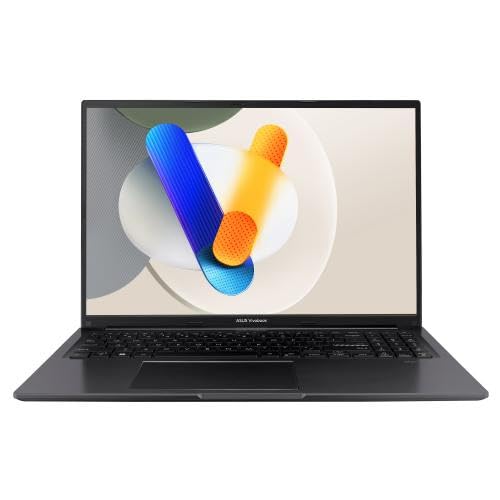
The Vivobook 16 is the performance-value pick in this set: a 16-inch WUXGA panel, 10-core i7-1355U, and 1TB SSD that sits between the budget Ryzen option and the color-first MacBook Air. The taller 1200-line display shows a full canvas plus toolbars without constant scrolling — a real workflow gain for layered compositions — and 1TB of storage swallows photo libraries, brush packs, and reference folders that would fill a 512GB drive in a single semester. Where the top pick wins on portability and battery, this machine wins on sheer workspace.

Under daily creative loads, the 10-core i7 with 16GB DDR4 RAM keeps multi-layer Photoshop and Illustrator files responsive, and casual gaming runs comfortably on the integrated Iris Xe graphics. The combination holds up through long studio sessions without the hesitation that bogs down thinner ultraportables, and the chassis feels solid for daily campus carry. That balance of CPU headroom and memory keeps the machine useful well past the first year of coursework.

This is the pick for art students rooted in 2D tools who want screen space and storage over pen input — the panel won't take a stylus, so direct sketching runs through an external tablet, and anyone expecting touch should look at the convertibles in this set instead. It also suits students who split time between a studio desk and the library; the mid-range price stays below flagship territory while covering the specs that most creative coursework demands.

Keep a small lamp near your desk — the unlit keyboard slows late-night sessions until you add light.

Bottom line: For art students rooted in 2D work who want the largest canvas and most storage at a mid-range price, the Vivobook 16 is the value pick.

#5

Acer Aspire Go 15 Ryzen 7

Acer Aspire Go 15 Ryzen 7

Budget performance

Customer rating 4.3/5
Check Price

Worth Noting

  • Cooling fans spin up audibly under heavy renders
  • Speaker output turns thin at higher volumes, making headphones the practical option.
CPU
Ryzen 7 7730U
RAM
16GB DDR4
Display
15.6-inch FHD IPS
Storage
512GB SSD
Read the full review

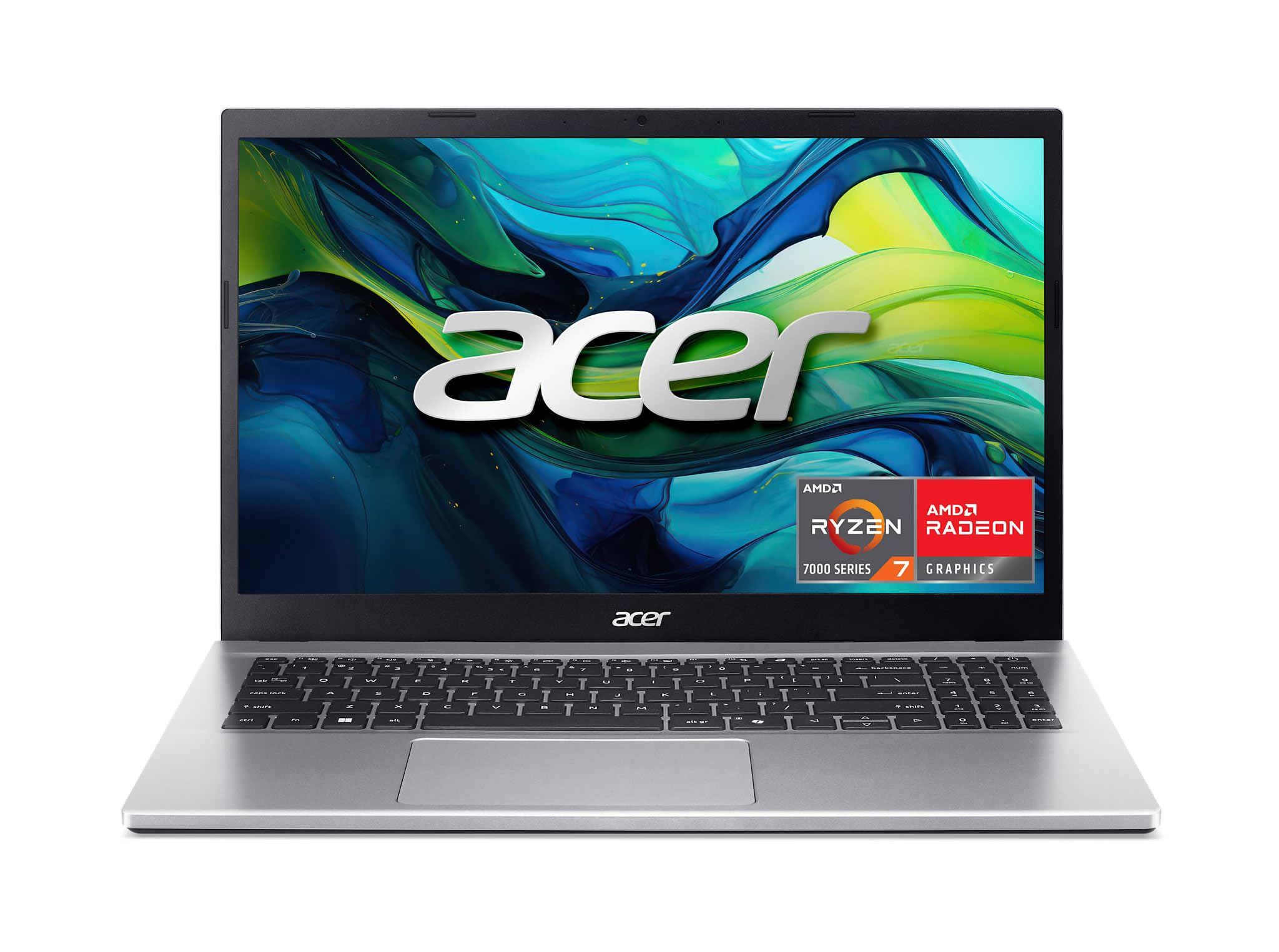
The Acer Aspire Go 15 pairs an 8-core Ryzen 7 7730U with 16GB of RAM at the lowest price in this lineup — more processing per dollar than any other laptop here. It moves through art software, browser tabs, and background file transfers in parallel without hesitation, which keeps daily creative work fluid. Next to the color-accurate MacBook at the top of this set, the Aspire trades panel fidelity for raw speed and a much smaller bill. Its 15.6-inch FHD IPS display stays clean and readable for painting references, though it is a standard-gamut panel rather than a color-critical reference screen.

This fits a budget-minded student running moderate Photoshop and illustration workloads who does not need to draw on the screen — there is no touch panel, so on-screen inking belongs to the Spin 3 and Envy x360. The tradeoff shows at the top of the load: heavy renders push the cooling fans to an audible hum and the speakers thin out. Both stay workable in a busy studio and surface mainly in a silent library. For daily coursework and light-to-moderate creative work, that tradeoff is easy to live with.

Setup takes minutes, Windows 11 Home boots quickly, and the integrated Radeon graphics move 2D illustration and layer work without lag. Between lectures, reference browsing, and evening sketching, the Aspire covers the routine smoothly, with the 512GB SSD leaving headroom for software and project files.

Bottom line: For the art student who treats the laptop as a working tool rather than a drawing surface, the Aspire Go 15 is the smart budget call — speed and 16GB RAM at a price that leaves room for a separate drawing tablet.

#6

HP 17.3in i5-1334U

HP 17.3in i5-1334U

Large-screen budget

Customer rating 4.4/5
Check Price

Worth Noting

  • For long study sessions away from an outlet, battery life can vary between units.
  • The listing advertises touchscreen, but the unit ships without it - a mismatch for hands-on drawing.
CPU
Core i5-1334U
RAM
16GB DDR4
Display
17.3-inch FHD IPS
Storage
512GB SSD
Read the full review

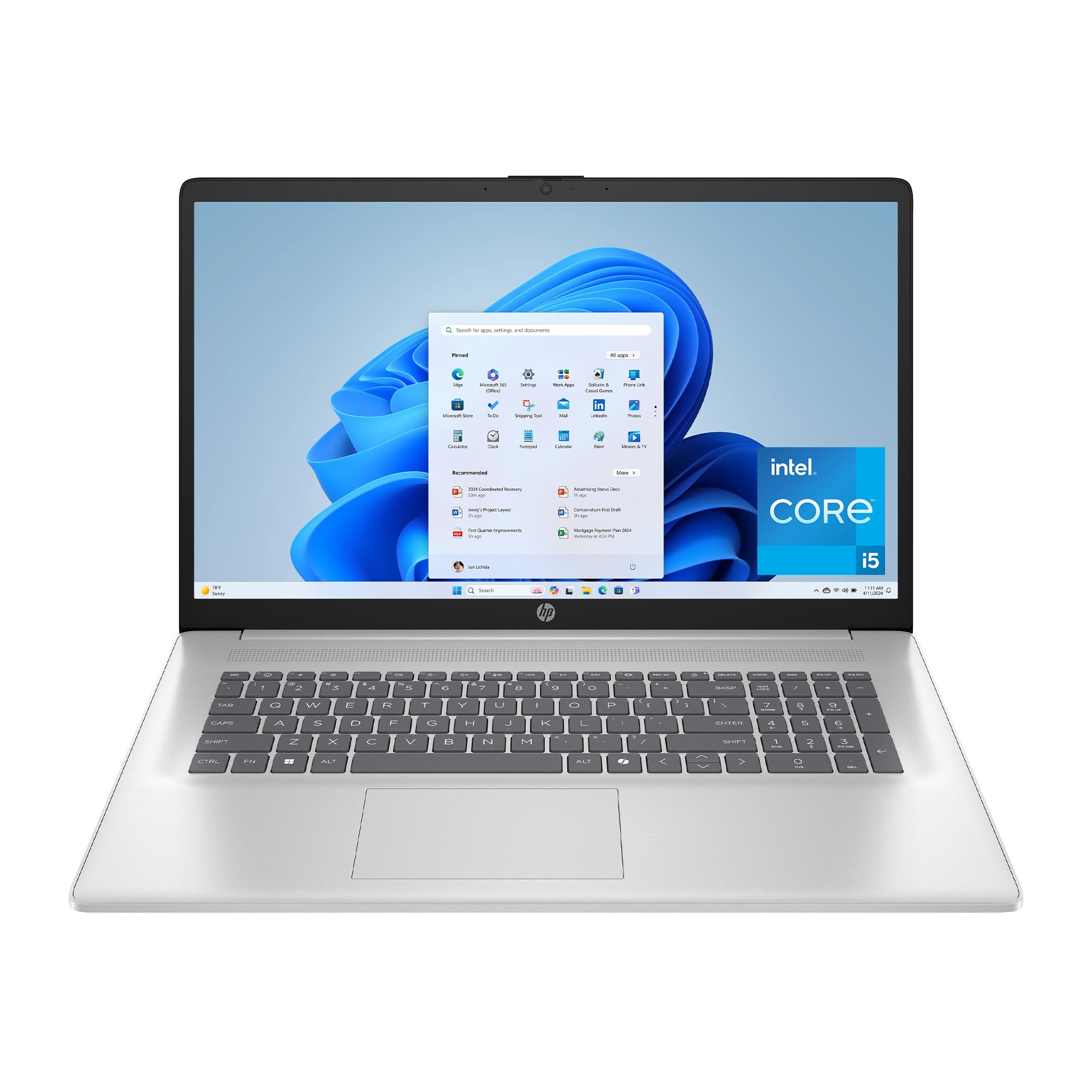
Offering the largest 17.3-inch FHD display in this set at a budget price, this HP pairs a 10-core Core i5-1334U with 16GB RAM and a 512GB SSD, delivering strong everyday performance and fast boot for general productivity. The screen's colors are pleasing, making it a good canvas for media consumption and light creative tasks. The large display reduces the need for external monitors during long study sessions. Its value is strongest for productivity and media, not for hands-on creative work.

Bottom line: For art students whose work stays in productivity and media apps rather than on-canvas inking, the spacious display and fast performance make this a strong budget pick.

How to Choose

CPU Performance

Core count matters more than clock speed for creative software. A 10-core chip like the Intel Core i5-1334U handles everyday multitasking easily, but heavy filters and exporting large canvases push it to its limits. Integrated graphics like Intel Iris Xe or Apple's M-series GPU accelerate 2D brush engines and photo edits, so most art students do not need a dedicated GPU.

The catch is that brush-heavy programs such as Photoshop lean on the CPU when applying effects like Liquify or content-aware fill. If those filters stall on your machine, the bottleneck is usually the processor, not RAM. Match the CPU tier to the heaviest filter you use regularly.

RAM

Photoshop keeps your full layer stack, undo history, and brush engine in RAM. At 8GB, a 3000x3000-pixel project with 20 layers forces the system to swap to disk, causing brush strokes to stutter and saves to drag. 16GB keeps the whole stack resident and is the practical minimum for multi-layer work.

Students who juggle Illustrator, reference images, and a browser at once will chew through 16GB faster than expected. If your workflow includes video or 3D alongside 2D art, consider 32GB to avoid upgrading within two years.

Display & Color

Resolution is overrated for art; color accuracy is not. A FHD panel at 300 nits looks fine in a dorm room but washes out under bright studio lighting, and a screen that covers only 45% of the sRGB gamut shifts skin tones and makes prints look different from what you see. Look for a panel with 100% sRGB coverage or a wider gamut like Apple's Liquid Retina.

Brightness matters for working near a window, but the hidden trade-off is cost: wide-gamut panels with high nits push price up, which is why budget laptops ship with washed-out displays. Set your floor at 100% sRGB and buy up only if you do print work.

Touchscreen & Stylus

A touchscreen alone does not let you draw. Direct inking requires an active stylus that reports pressure and tilt, using a protocol like Wacom AES, Microsoft Pen Protocol, or Apple Pencil. Listings rarely state the protocol, so a 'touch' laptop can still be useless for sketching.

If your budget limits you to a capacitive touchscreen without pen support, you are better off buying a non-touch laptop and a standalone drawing tablet, which delivers better pressure response for less money.

Storage

Art files are large: a single 50-layer PSD can exceed 2GB, and a semester of projects, video clips, and installed software fills a 512GB drive quickly. SSD speed also affects save times and app launches, so look for NVMe rather than older SATA drives.

If 512GB is your budget, pair it with an external drive for archived projects rather than paying for cloud storage monthly.

Frequently Asked Questions